by Martin | Jan 19, 2021 | Uncategorized
A filtered portal in FileMaker is logical. If you want to filter by say ‘colour’
In the relationship diagram instead of the relationship being between the fields
Parent_Table::ID = Child_Table::ID_Parent
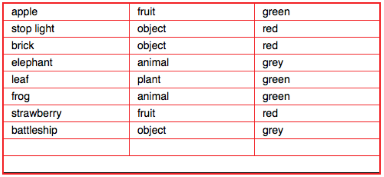
[1] Create another field in the parent table called something like Child_Portal_Filter, and make the relationship
Parent_Table::ID = Child_Table::ID_Parent
and
Parent_Table::Child_Portal_Filter = Child_Table::Colour
[2] Create a value list of colours. Either hard code them in or make them show Child_Table::Colour
[3] Set up the portal on the layout based on the Parent_Table
[4] In the 4th tab of the Inspector set the ‘control style’ of both fields Parent_Table::Child_Portal_Filter and Child_Table::Colour to be a pop-up menu or drop-down list of the value list.
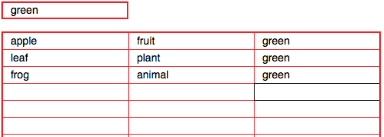
Notice that if no colour is set in Parent_Table::Child_Portal_Filter then NO records are shown – as opposed to ALL records.
To do that, you need to create another field with a value list of the colours and the word ‘All’ and use the PatternCount function
by Martin | Apr 6, 2021 | Uncategorized
Here’s how I generate a random 10 digit password using upper and lowercase, numbers and special characters. Did you know the ‘£’ symbol is only on British keyboards – so a good one to use against foreign hackers.
I don’t include 01ijlIO as they are very confusing – numbers zero & one; lowercase i, j & l; uppercase I & O.

by Martin | Apr 6, 2021 | Uncategorized
I use global fields a lot. They are great in so many ways but especially as they are unique to the individual user.
I first learnt the power of them when as a new FM user I set up a portal filter using a normal field with a drop down list and then discovered very quickly that user’s screens were changing in front of their eyes as others used that portal at the same time. Chaos. It was easily resolved with a field set as a global field. Manage database > select the table/field > field options > tab:storage > tick – use global storage.
• Not only is it unique for just that user
• but it is still valid whatever found set you are looking at
• and it doesn’t need to be in the table that the layout is based on
• and you don’t need a relationship to it. That’s why often a table is set up to store ALL global fields, wherever they are used.
• Beware though, if you set up one generic field called date_g you might get the same issue as above using it for two different reasons ie Date_Start and Date_End!
I use global fields for capturing form entries. eg username, address; or a choice from a checklist etc, where I want to use the info but not necessarily create a new record.
One thing though. You can’t enter data into them on a layout if your found set has no records!!
I have a simple user interface. Basically a find that any member of the public can use which gives limited info in return. Hopefully enough for them to register to get more info. However if their return is 0 records. They can’t fill in the form’s global fields.

The way I got round that is to include one record with a full stop ‘.’ in an obscure field and find that so one record always shows. But being a ‘blank’ record it’s not obvious.
As an extra catch all. If there’s no record with the ‘.’ for some reason. (I must confess I deleted it once clearing out blank records!!) I have another if get(FoundCount) = 0 and create a new one.

by Martin | Jan 19, 2021 | Uncategorized
It seems a simple request, but get’s complicated quickly as there’s either 30 or 31 days in a month, and to make matters even more complicated there’s 28 days in February but only 3 out of every 4 years…’
Deep breath. Delete all those thoughts…

Just think. The last day of the month is always 1 day before the 1st day of the next month.
So depending on exactly what the request is, use a variety of FileMaker functions…
get(CurrentDate)
Date ( month ; day ; year )
Day ( date )
Month ( date )
Year ( date )
So the ‘date’ of the last day of this month is…
Date ( Month ( get(CurrentDate ) + 1 ; 1 ; Year ( get(CurrentDate ) ) – 1
The ‘Month ( get(CurrentDate ) + 1’ bit is next month
And the ‘- 1’ at the right is one day earlier
And just the last day of this month is…
Day ( Date ( Month ( get(CurrentDate ) + 1 ; 1 ; Year ( get(CurrentDate ) ) – 1 )
OK the date of the last day of next month gets interesting if it now December but then how about introducing a case statement…
Month ( get(CurrentDate ) = 12
by Martin | Jan 19, 2021 | Uncategorized
I’ve often looked at FileMaker’s ‘best practices’ on and off over the years. And have settled on a hybrid system that works for me. Especially when I take over a system that’s up and running and designed by someone else, then I can easily recognise my work.
TABLES
• I always spell them in capitals. And if I use 2 words join them together with an underscore.
TABLE OCCURRENCES/RELATIONSHIP DIAGRAM
• I put all the base tables on the left, which all layouts are based on (and only ever based on)
• I then use the anchor/buoy method to pull in related data. I never did get the hang of selector/connector ;(
• I label the table the t/o is based upon in CAPS and the table the layout is based upon (and interim tables) in lowercase
• The whole point of doing it this way, is that when you are on any layout you can very easily see the related data, via a relevant table path, all listed alphabetically and logically. So you always pick the right t/o
• And, what’s better, it works in every context too. Shame about the misspelling of propertry!
LAYOUTS
• I number all my layouts.
• It makes life so much easier, especially when talking with a user over the phone.
– ‘The number field isn’t big enough to show the figure’! they say. To which I ask ‘Which layout are you on?’
– ‘The one that shows the amounts…’ You can then imagine the game of how many questions can I ask before I’m on the same layout? To which the answer is always not enough.
So I’ve stopped playing this game by numbering all my layouts in the top left (eg 6) and calling them ‘6 whatever…’. I then immediately know where they are, and what they are looking at. I also don’t have to remember the layout name or syntax when searching for it because all I have to remember is a number.
SCRIPTS
• Likewise I number them based upon the layout they are on ie layout 6 script number 4 is ‘6.4 followed by what ever dribble I want to write’. The dribble doesn’t matter as it’s the ‘6.4’ that’s unique.
• It makes finding them and not confusing them with others so much better.
• There’s also a bit of extra evolved extra thinking here.
– PSOS (perform script on server) always gets put at the top of the list (easier to find in the server console)
– ‘n…’ are generic navigational script ie go to layout 1. If necessary I’ll enter a script parameter with an if step. ie if coming from this button go to the layout but do THIS find…
– ‘F… is again generic based upon finds
by Martin | Apr 8, 2021 | Uncategorized
Often we need a found set to work from. Orders to be processed that day, list of customer IDs to go off and get info for…
And we need that as a ‘list’
But first we need to explain the context of ‘lists’ within Claris’ FileMaker.
[1] List view. Layouts can be seen in page (one record at a time that you click to go to next/previous record), list (many records – can be one line per record, or a pile of fields with images that you scroll up/down through the records) or table view (like a spreadsheet grid).
[2] the function List ( field {; field…} ) is a left over from repeating fields. It only lists the values in one record.
[3] I haven’t found yet a list of values from the same field from a found set. Point me in the right direction if I’ve missed something or it’s new.
I tend to do this various ways…
• Export records and open the text file and cut/paste the list. Remember to sort before export. Then access the individual values by looping through and using the FileMaker function GetValue(listOfValues;valueNumber)
Set Variable [ $i ; Value: 1 ]
Loop
GetValue ( $Value ; $i ) // GetValue ( listOfValues ; valueNumber )
Exit Loop If [ $Value = “” ] // or Exit Loop If [ IsEmpty( $Value )
~~~~~~~~~~~~~~~~~~~~~~~~~~~~~
Enter the script steps here to do whatever you need to do with this value.
~~~~~~~~~~~~~~~~~~~~~~~~~~~~~
Set Variable [ $i ; $i + 1 ]
End Loop
• Export records to a temp file then import in to an interim table, where I can scroll trough to remove duplicates, sort etc.
• Open a new window where I go off and get the info I need, using the first one as my list ,and toggle between the two. Using Go to Record/Request/Page [ Next ] ; Exit after last : On ]
[4] A Brian Dunning custom function called FoundList ( field ; start ) at https://www.briandunning.com/cf/1058


